

What is a directory listing consent?
Clubs, associations, schools, alumni networks and employers all publish directories — an online member list, a printed handbook, a staff page on the website. Each entry is personal information, and listing someone without a clear yes invites complaints, and in many places trouble under data protection law. A directory listing consent records the person's choice in plain terms.
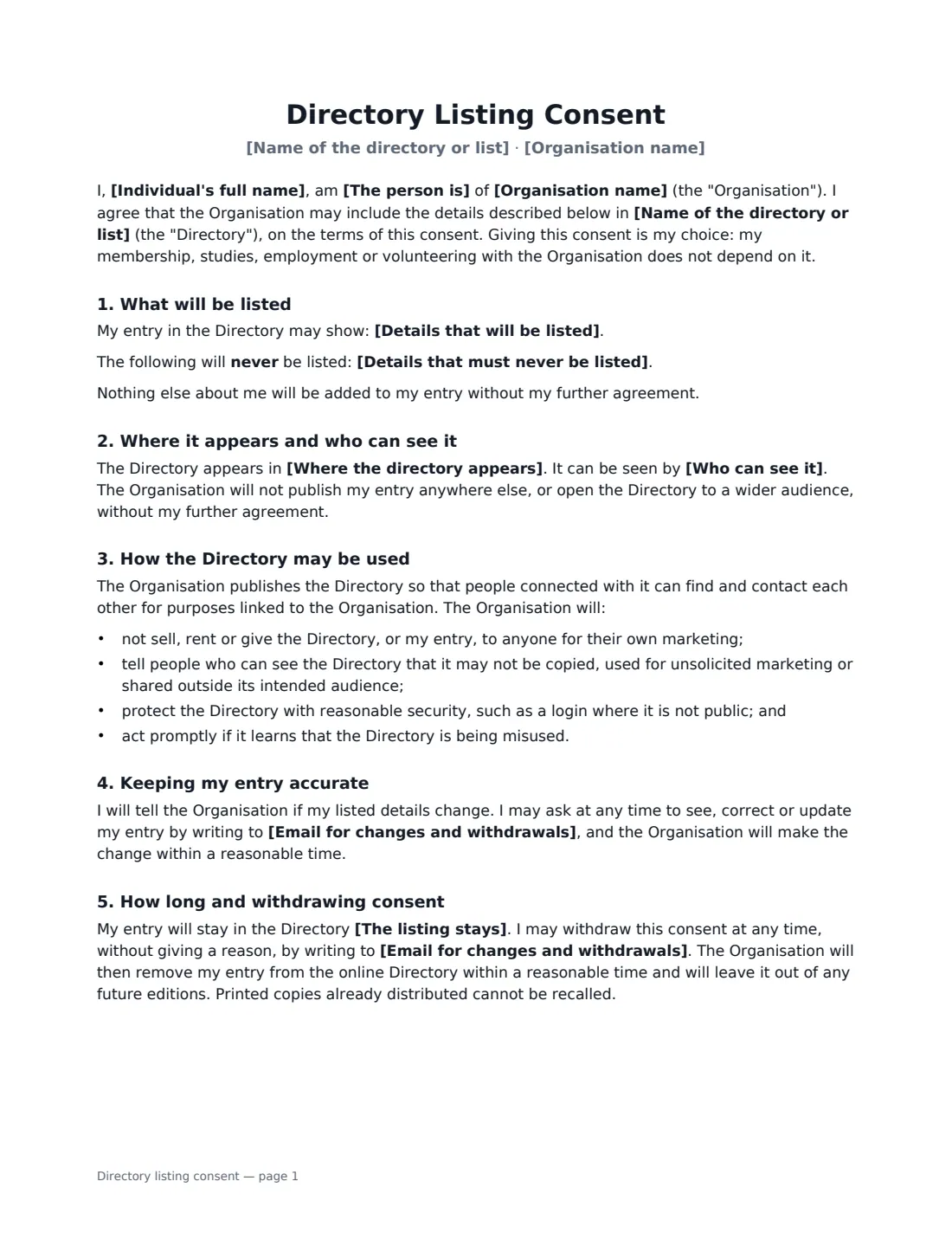
This template lists, item by item, the details that will appear (anything not listed stays out), whether a photo is included and whose photo it is, anything that must never be published, where the directory appears and who can see it — members behind a login, staff only, approved partners, or the public. It commits the organisation not to sell or hand the directory to marketers, to warn viewers not to misuse it and to keep it secure, and it gives the person an email address to update or withdraw their entry at any time. When the directory is public, it also spells out that search engines and other people may see and copy the entry.
- Best for
- Member, alumni, volunteer, parent and staff directories — online, printed or in an app
- Signed by
- The person being listed and the organisation
- Choices
- Details listed, photo, never-list items, audience, how long the listing stays
- Length
- 2 pages
When to Use a directory listing consent
- A sports club or professional association launching an online member directory
- A school or university alumni office building a searchable alumni network
- An employer publishing a staff directory or team page on its website
- A parent-teacher association sharing a class contact list
- A charity listing volunteers or trustees in its annual report
What You Fill In
11 blanks, then the name and email of each person who signs: individual, organisation.
1 The directory
- Organisation name*
- Name of the directory or list*
- Where the directory appears*
- Who can see it* members of the Organisation only, after logging in · staff and volunteers of the Organisation only · members and approved partner organisations · anyone, including the public
- Email for changes and withdrawals*
2 The person
- Individual's full name*
- The person is* a member · a former student · an employee · a volunteer · a board or committee member · a supporter · a parent or guardian of a student
3 What is listed
- Details that will be listed*
- Photo* No photo will be included · A photo I provide may be included · A photo taken by the Organisation may be included
- Details that must never be listed
4 How long
- The listing stays* for as long as I remain connected with the Organisation, unless I withdraw earlier · until I withdraw this consent · for one year, after which the Organisation will ask me again
5 Who signs
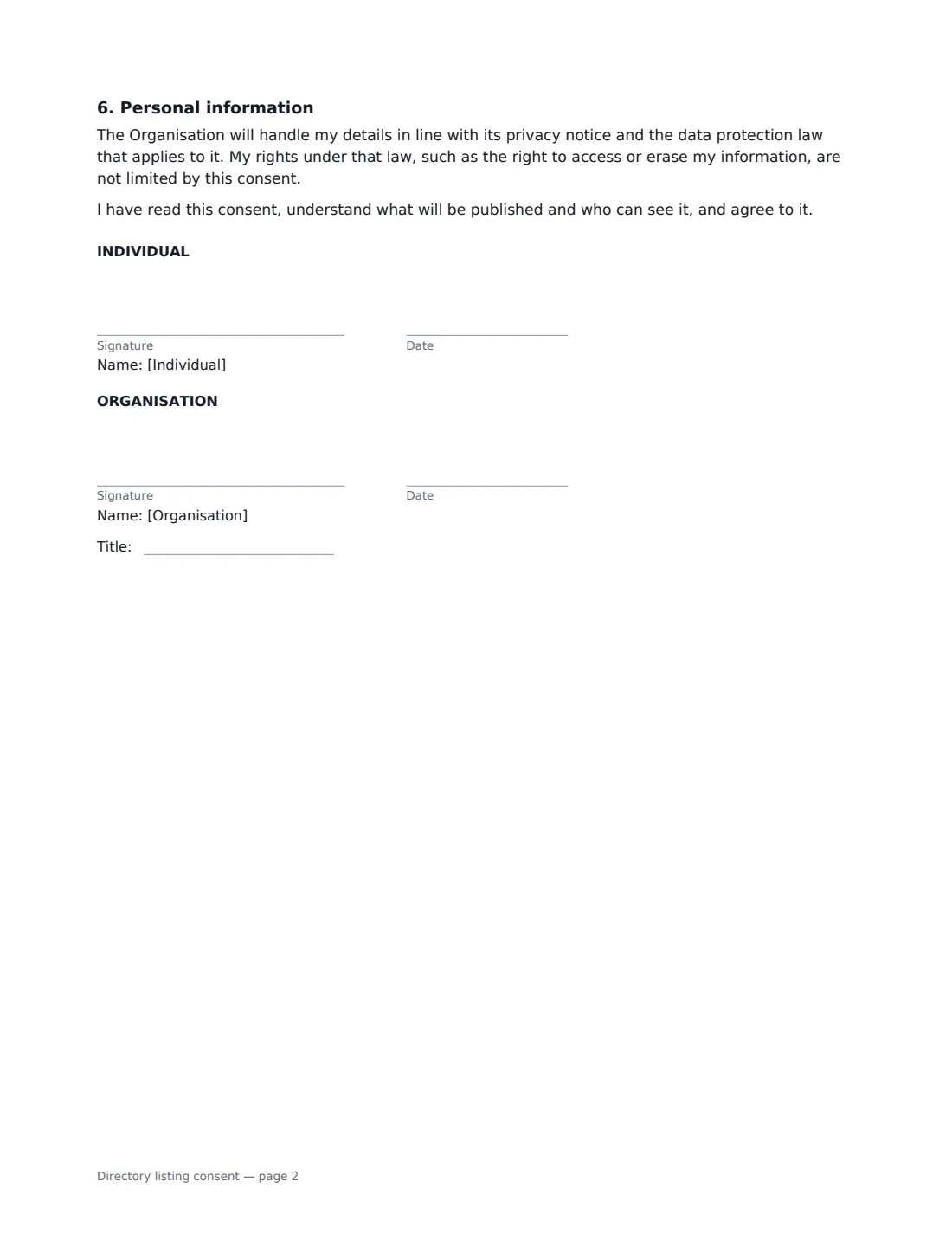
- Individual signature and date · The person whose details will be listed.
- Organisation signature and date, job title · Someone signing for the club, association, school or employer that publishes the directory.
What the directory listing consent Covers
- What will be listed
- Where it appears and who can see it
- How the Directory may be used
- Keeping my entry accurate
- How long and withdrawing consent
- Personal information
Using the directory listing consent, step by step
1 Describe the directory
Name it and list every place it appears — the members' area of the website, a printed handbook, an app, a noticeboard. Then choose who can see it. The audience you pick is written into the consent, and the organisation promises not to publish the entry elsewhere or widen the audience without asking again.
2 List the details exactly
Write out each item that will be shown, such as "full name, graduation year, employer and job title". The consent says nothing else will be added without further agreement, so a precise list protects both sides. Add anything the person wants ruled out, like a home address or personal mobile.
3 Choose photo and duration
Pick no photo, a photo the person supplies, or one the organisation takes (which the person sees first). Then choose whether the listing lasts while they remain connected, until they withdraw, or for one year before you ask again.
4 Send it for signature
Add the person as the signer and yourself for the organisation. Keep the signed copy — it is your record of what they agreed to if a question comes up later.
Tips Before You Send It
- Ask for consent separately from membership or employment paperwork, and don't make joining depend on it. The template says so explicitly.
- Default to the smallest audience that works. A members-only directory behind a login is far lower risk than a public web page.
- Use an email address that is actually monitored for changes and withdrawals — the person is promised a response within a reasonable time.
- Remember that printed copies cannot be recalled. If people are likely to change their minds, keep the directory online only.
Sign It Online In Minutes
- Fill in the blanks. Names, dates and amounts go straight into the agreement — the preview shows exactly where.
- Name who signs. Tick “This is me” for your own part. VergeHR builds the PDF with every signature, date box on the right line, and you can check or move anything before sending.
- Send it. Each signer gets a secure link and signs from any device — no account needed. The signed PDF, with an audit trail and a Certificate of Completion, is filed in Files and emailed to everyone.
Directory listing consent: frequently asked questions
Do I need consent to put someone in a directory?
It depends on the law where you operate and on what you publish. Many data protection laws, such as the GDPR in the EU and the UK GDPR, require a lawful basis for using personal details, and consent is a common and clear basis for a directory listing. Even where it is not strictly required, a signed consent avoids disputes. Check the rules that apply to your organisation.
Can someone withdraw after signing?
Yes. The template lets them withdraw at any time, without giving a reason, by writing to the email address you give. Their entry is then removed from the online directory within a reasonable time and left out of future editions.
Does this cover a public website listing?
Yes — choose "anyone, including the public" as the audience. The consent then adds a sentence explaining that a public entry may be viewed, copied or indexed by search engines.
Is an electronic signature valid for a consent form?
Generally yes. Electronic signatures are widely recognised for ordinary agreements and consents in the US (ESIGN and UETA), the UK, the EU (eIDAS) and Canada. VergeHR keeps an audit trail and a Certificate of Completion with the signed PDF.